Background guide
How to Blur a Portrait Background Naturally
Background blur can make a portrait feel calmer and more focused, but the result only looks convincing when the subject boundary remains clean. The goal is not maximum blur. It is enough separation to guide attention without creating halos around hair or clothing.
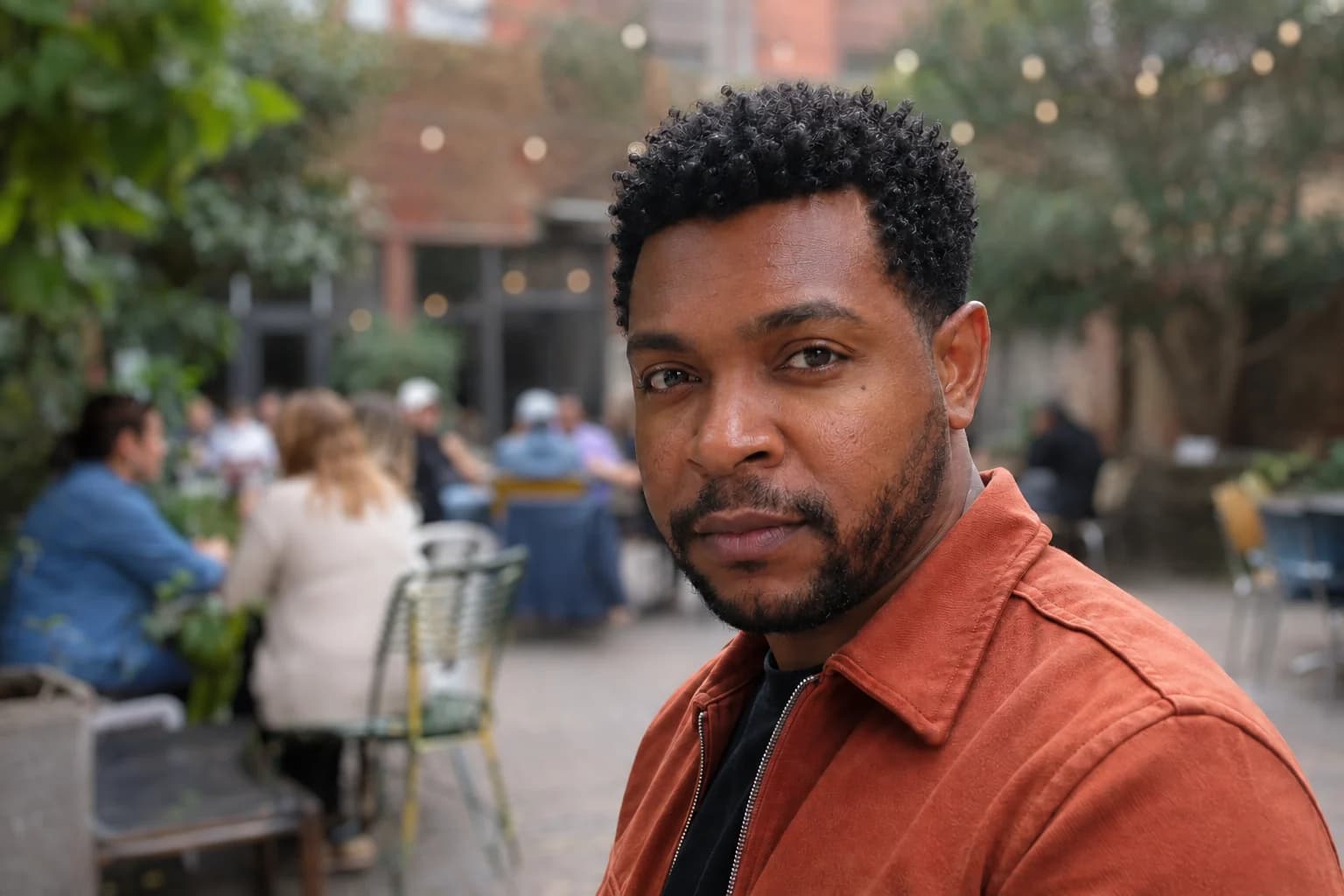 BeforeAfter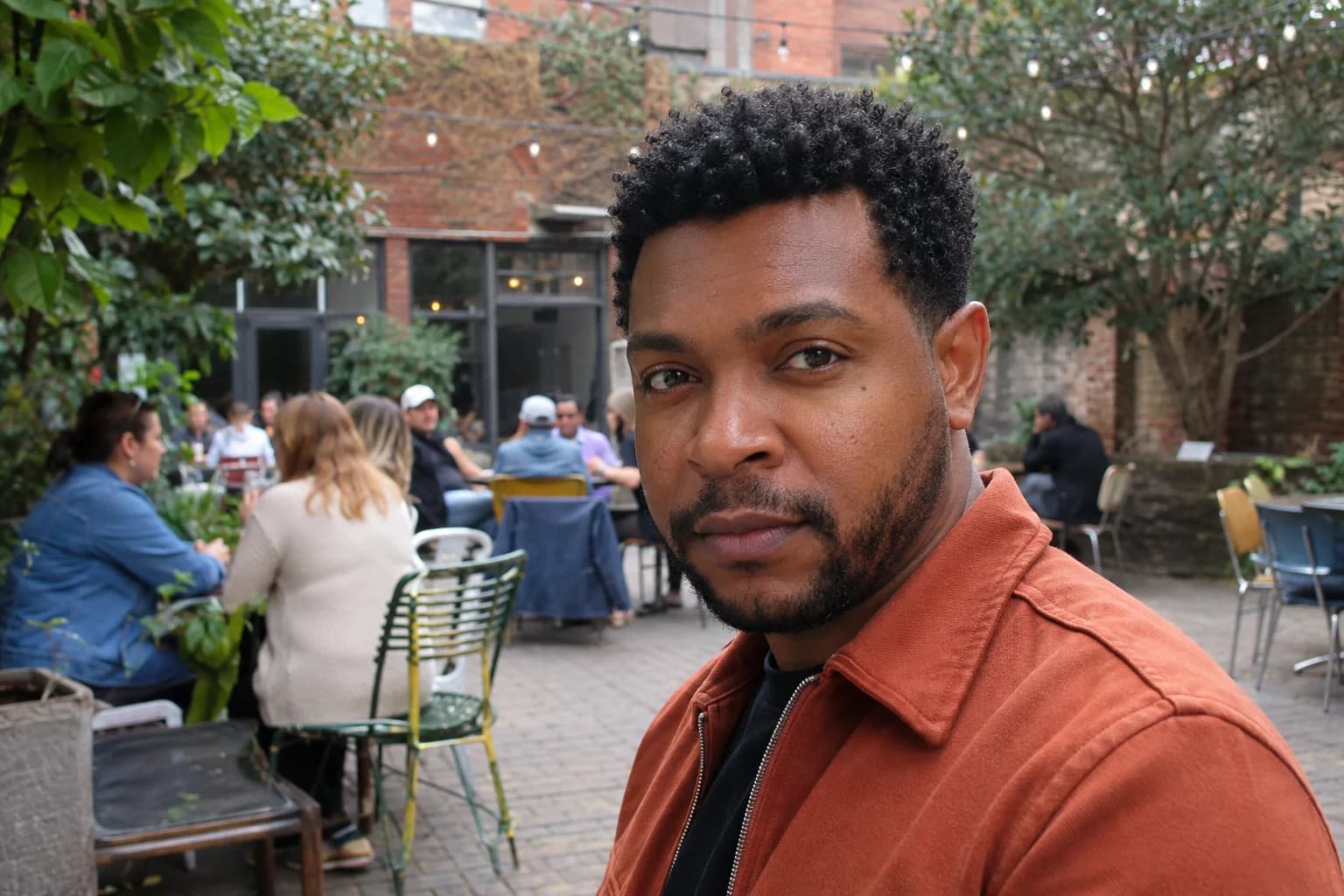
Start with a clear subject
Choose a portrait where the person is visually distinct from the background. Similar colors, flyaway hair, glass, and motion blur make automatic subject selection more difficult. Fit the whole photo on screen before judging the first mask.
- Open the portrait and inspect its edges.
- Choose a moderate background blur.
- Zoom in around hair, shoulders, and hands.
- Refine any areas that were blurred incorrectly.
- Fit to screen and compare with the original.
- Export only after checking the full-size preview.
Keep transitions believable
Real lenses blur distant areas more strongly than nearby areas. A small amount of feathering can soften the subject boundary, while too much creates a glowing outline. Pay particular attention to hair: preserving a few fine strands often looks more natural than a perfectly smooth cutout.
Choose blur for the photograph
Portraits with a busy park, street, or event background may benefit from stronger separation. A plain wall often needs only a subtle blur. Review eyes and facial features at 100% because the subject itself should remain sharp.
Practical tips
- Use moderate blur and inspect fine hair at 100%.
- Keep foreground items at a believable sharpness.
Common mistakes
- Blurring hair, clothing, or face together with the background.
- Using maximum blur on a background that was already close to the subject.